

Dynamics 365 SLA breaches go unnoticed because most teams promise a response time without anything on the case counting it down. The fix is to give every case a clock, warn the team before the deadline passes, and escalate automatically when it does. This guide builds that setup in order, using an enhanced SLA in Dynamics 365.
Quick Solution Summary
- Root cause: SLAs live in contracts and slide decks, but no timer, warning or escalation is attached to the cases themselves.
- Fix: create an enhanced SLA in Dynamics 365 with First Response By and Resolve By targets, tied to a business-hours calendar.
- Enforcement: configure Dynamics 365 SLA warning and failure actions so supervisors are alerted before a breach, and Dynamics 365 case escalation happens automatically after one.
- Proof: report on SLA KPI instances to show key accounts their real compliance.
Why Dynamics 365 SLA Breaches Stay Invisible Until the Customer Escalates
Imagine a key account emails support on a Thursday afternoon with a production issue. The contract promises a four-hour response. By Friday morning nobody has replied, and the first sign that anyone noticed is a message from the customer’s director to your manager.
The cause is rarely a lazy team. Nothing on the case counts time. Without a timer, a warning and an automatic escalation, a broken promise looks identical to a case that is simply waiting its turn.
That is why Dynamics 365 SLA breaches are discovered late, by customers, instead of early, by you. You are probably in this situation if you recognize these symptoms:
- Customers escalate to managers before anyone on the support team knows a deadline was missed
- First response time in Dynamics 365 is estimated by hand, or not measured at all
- High-value accounts wait as long as everyone else because nothing marks their cases as urgent
- Managers can’t say how many cases are about to breach without opening them one by one
- The response times quoted to customers can’t be backed up when they ask
A Promise Without a Clock Is Just a Hope
Some teams do have an SLA record in Dynamics 365 and still suffer Dynamics 365 SLA breaches. Usually the SLA was built without warning or failure actions, so it documents the promise but never enforces it.
An enhanced SLA in Dynamics 365 does more. It creates SLA KPI instances for each target on each case, shows a live timer on the case form and supports pausing and resuming. That is the difference between recording a promise and managing it.
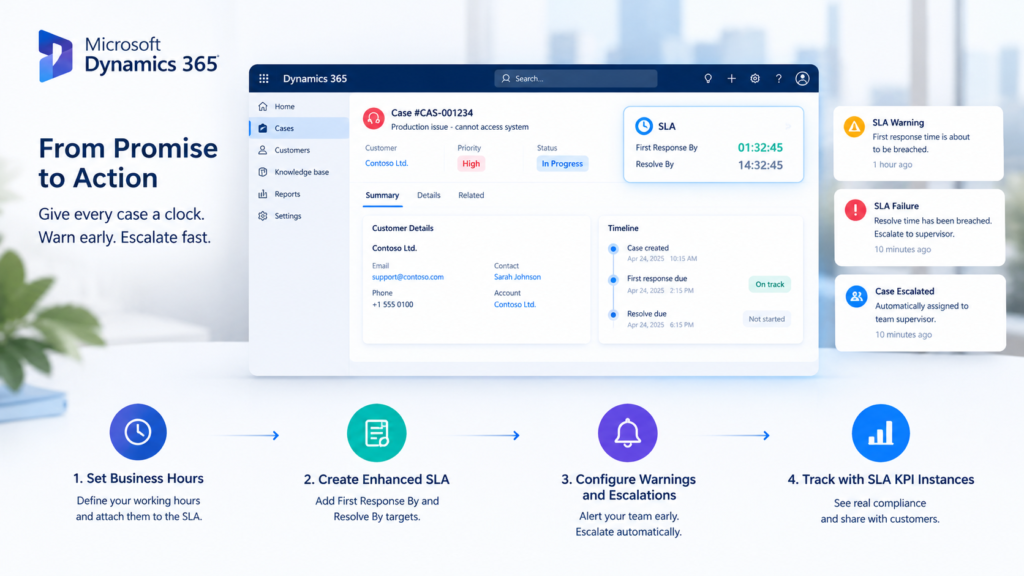
The fix therefore has four parts: a clock, a warning, a consequence and a report. Each is simple on its own. The value comes from having all four.
Step-by-Step: Give Every Case a Clock
- Set the business hours first.
Create or review the customer service schedule that defines when your team works, and attach it to the SLA. Failure and warning times are calculated against those hours, so a case that arrives on Friday evening doesn’t breach over the weekend. - Create an enhanced SLA in Dynamics 365 with the right targets.
In the Customer Service admin center, open Service terms, create a new SLA of the enhanced type, and add SLA items for First Response By and Resolve By. Set the first response target to what you actually promise customers, since first response time in Dynamics 365 is the number they feel most. Each target becomes one of the SLA KPI instances on every case the SLA applies to. - Apply the SLA to your cases.
Link the SLA to customer entitlements so a premium customer gets a tighter target, and set a default SLA for cases without an entitlement. Microsoft’s page on applying SLAs explains how the two interact. Then add the timer to the case form so representatives see the countdown on every case they open.
Most teams find their entitlements, queues and calendars are tangled before an SLA is ever added. Contact MP-365 for a free consultation and we will review how Dynamics 365 SLA breaches are happening in your environment today, then tell you which of these steps will close the gap fastest.
Step-by-Step, Continued: Warn Early, Escalate Fast
- Add warning actions.
Set a warning time ahead of the failure time, for example at 75% of the target. Use Dynamics 365 SLA warning and failure actions to notify the case owner and the supervisor, and let Power Automate send a Microsoft Teams message while there is still time to act. - Add failure actions that escalate.
When a target is missed, trigger Dynamics 365 case escalation: move the case to an escalation queue, raise its priority and alert the service manager. Keep the path identical for every breach so nobody has to decide what to do in the moment. One caveat: warning and failure actions run asynchronously and may not fire at the exact second. Warnings set under an hour can be delayed, so don’t build processes that depend on minute-level precision. Microsoft’s guidance on creating SLAs covers the details. - Pause the clock when the customer holds the ball.
Enhanced SLAs support pause and resume, so a case waiting on customer information can be put on hold without burning time. When the case resumes, the timer updates its failure and warning times. If a case goes on hold after its warning time has passed, the warning time is not recalculated on resume, so review those cases by hand. - Report on what the clock records.
Every target on every case is stored as one of the SLA KPI instances, which means compliance can be reported by customer, queue or representative. Build a view or dashboard on those records and you can show a key account its real response times instead of an estimate.
Keeping Dynamics 365 SLA Breaches From Coming Back
Review your enhanced SLA in Dynamics 365 every quarter. If average first response time in Dynamics 365 sits close to the target, the target is too tight to sustain. Adjust it before breaches pile up.
Watch how often cases go on hold. Pausing is useful, but unreviewed hold reasons can quietly hide slow handling. Treat a rising hold rate as a flag, not a win.
Fix the upstream causes. Routing decides who gets a case, and duplicate cases inflate volume and skew compliance numbers. Our shared inbox routing fix and duplicate cases guide cover both.
Conclusion: From Surprise Escalations to Early Warnings
Dynamics 365 SLA breaches are not a staffing problem. They are a visibility problem, and the cure is a clock on every case, a warning before the deadline and an escalation after it.
With Dynamics 365 SLA warning and failure actions and automatic Dynamics 365 case escalation in place, your managers learn about a risk before the customer does. The conversation with key accounts changes from apologizing to showing the numbers. For the edition details behind these features, see our Dynamics 365 Customer Service guide.