

“Our storage bill just tripled, and we don’t even know why.” That’s what one MP-365 client told us right after Microsoft flagged their environment for running low on space. Like most Dynamics 365 storage capacity issues, the cause was simple: every PDF, slide deck, and image signature synced from Outlook was landing directly inside the database instead of a cheaper storage layer. The fix is to connect Dynamics 365 to SharePoint and Azure Blob Storage, so attachments route out automatically while the CRM record keeps a lightweight link behind the scenes.
Quick Solution Summary
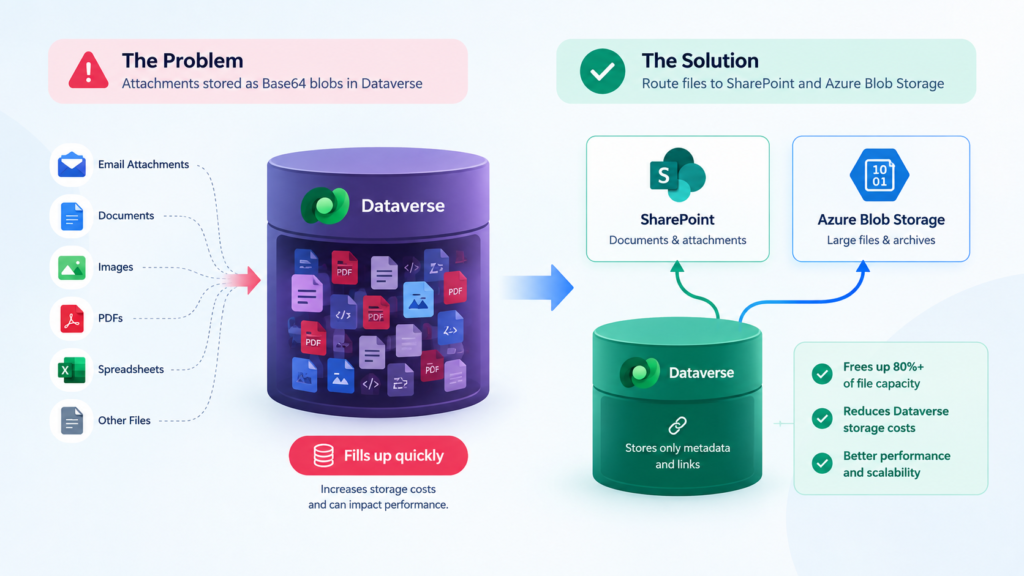
- Root cause: Email attachments and files save as Base64 blobs inside Dataverse file storage, a separate and expensive capacity bucket from your CRM records.
- The fix: Integrate Dynamics 365 with SharePoint and Azure Blob Storage so binary files auto-route out of Dataverse.
- The result: Most environments free up 80%+ of consumed file capacity and immediately reduce Dataverse storage costs.
- Time to implement: Usually 1 to 3 days, depending on environment size and whether SharePoint document management is already configured.
Why Dataverse Storage Fills Up So Fast
Dataverse actually splits storage into three separate buckets: Database, File, and Log capacity. Most teams assume their bill is climbing because of growing customer records, but in the vast majority of Dynamics 365 storage capacity issues, it’s Dataverse file storage that’s driving the overage, not the transactional database itself.
Every time an email syncs with an attachment, Dynamics 365 saves that file directly into Dataverse as a blob. This is especially common on Dynamics 365 Sales teams, where reps forward contracts, proposals, and signed PDFs into the CRM dozens of times a day without anyone realizing where those files actually live.
Here’s what typically confirms you’re dealing with this issue:
- A storage capacity warning banner in the Power Platform Admin Center, specifically under File Capacity
- A Microsoft invoice with an unexpected storage add-on charge
- Slower load times on records with heavy email or note activity
- Errors creating new records once the environment nears its allotted limit
- Dataverse file storage climbing rapidly while Database Capacity stays roughly flat
That last symptom is the clearest signal. If your file bucket is the one spiking, the problem almost always traces back to unmanaged attachments, not actual CRM growth.
Step-by-Step Fix: Moving Attachments to SharePoint and Azure Blob Storage
Resolving Dynamics 365 storage capacity issues at the root means changing where files live, not just deleting old ones. Here’s the sequence MP-365 uses with clients.
- Audit current usage. Go to Power Platform Admin Center > Environments > [Your Environment] > Resources > Capacity to see exactly how much of your File Capacity is consumed and which tables are the biggest contributors.
- Enable SharePoint document management. Navigate to Settings > Document Management > SharePoint Document Management Settings and connect your Dynamics 365 environment to a SharePoint site. This creates the link Dataverse will use going forward.
- Map the right entities. Select which record types (Email, Case, Opportunity, Account) should route their attachments to SharePoint. Most storage bloat comes from Email and Case attachments specifically, so start there.
- Migrate historical files. Use the built-in “Move Documents to SharePoint” utility, or the SharePoint Migration Tool for larger backlogs, to relocate existing attachments out of Dataverse and reclaim the space they were consuming.
- Layer in Azure Blob Storage for archives. For older records you still need to retain for compliance but rarely access, Azure Blob Storage offers an even cheaper cold-storage tier than SharePoint, which further helps reduce Dataverse storage costs long term.
- Set new attachment limits. Under Settings > Administration > System Settings > Email tab, cap the maximum attachment size so oversized files can’t sneak back into Dataverse the next time email sync runs.
- Verify capacity recovery. Return to the Admin Center a day or two after migration to confirm File Capacity usage has dropped and the storage warning has cleared.
“If your team doesn’t have the bandwidth to map SharePoint libraries and migrate historical attachments during a busy quarter, Contact MP-365 for a free consultation. We’ll assess your current Dataverse capacity breakdown and handle the SharePoint and Azure Blob Storage integration end to end, so your team stays focused on selling and servicing customers instead of chasing storage warnings”
Preventative Best Practices to Avoid Recurring Storage Issues
Fixing the current overage is only half the job. These three habits keep Dynamics 365 storage capacity issues from coming back.
- Enforce attachment limits by policy, not memory. Set a hard cap on attachment size and communicate it to sales and support teams so oversized files never reach Dataverse in the first place.
- Run a quarterly capacity audit. Check the Power Platform Admin Center every quarter, the same way you’d audit any other system. Catching a slow climb in File Capacity early is far cheaper than reacting to a storage warning after the fact.
- Plan storage into your licensing decisions. As teams scale or move between Dynamics 365 editions, like the jump covered in our guide to Dynamics 365 Sales Professional pricing, factor expected file volume into the conversation early so storage costs don’t become a surprise later.
The Bottom Line
Most Dynamics 365 storage capacity issues aren’t a sign your CRM has outgrown its plan. They’re a sign attachments never had a proper home to begin with. Routing files to SharePoint and Azure Blob Storage, rather than letting them pile up as Base64 blobs, is consistently the fastest way to reduce Dataverse storage costs and keep your environment running at full speed.
If your team is watching storage warnings pile up and isn’t sure where to start, Contact MP-365 for a free consultation. As a Microsoft Solutions Partner specializing in Dynamics 365, we can map out exactly where your Dataverse file storage is going and get it under control.