

Dynamics 365 Sales quote delays almost always come down to one thing: your CRM has no live line to the system that knows what’s actually in stock and what a custom configuration costs. A rep opens an opportunity, then stops to email engineering and the warehouse before they can put a number in front of the customer. The fix is connecting Dynamics 365 Sales to Dynamics 365 Business Central or Supply Chain Management, so pricing and inventory checks happen inside the quote itself instead of over email.
Quick Solution Summary
- Root cause: Dynamics 365 Sales and your ERP (Business Central or Supply Chain Management) aren’t connected, so reps manually chase stock and pricing info by email.
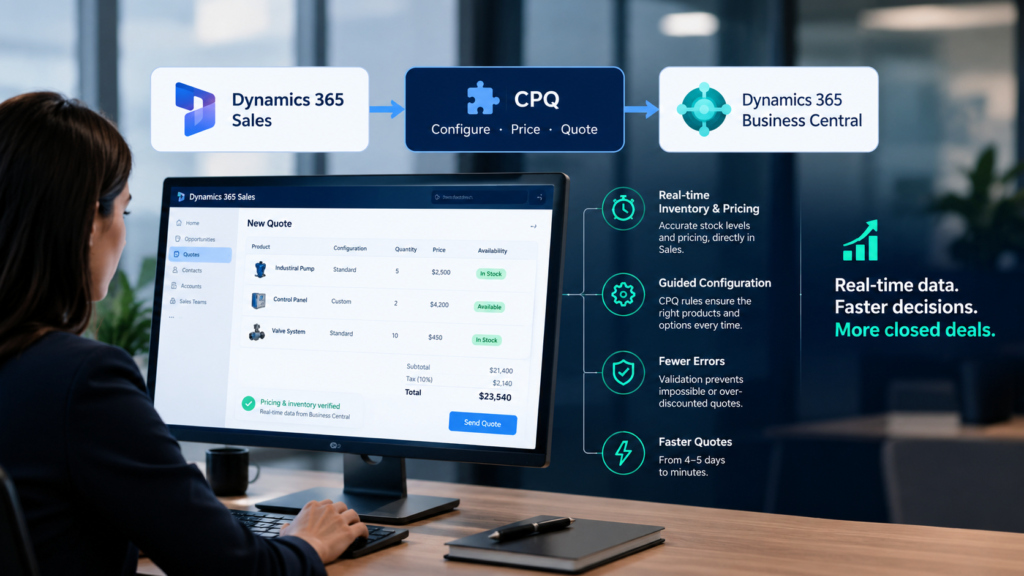
- Fix: Integrate Dynamics 365 Sales with Business Central using a CPQ (configure, price, quote) engine, so quotes pull live inventory and pricing rules automatically.
- Result: Quotes that took 4 to 5 days can go out in minutes, built on verified, current numbers.
The Symptoms: A CRM That Can’t See Your Warehouse
“It takes us 4 to 5 days just to send a basic proposal.” That’s the line we hear most often from sales leaders dealing with this exact issue. By the time the quote is ready, the prospect has usually already gone with whoever answered first.
Dynamics 365 Sales quote delays follow a pattern that’s easy to recognize once you know what to look for:
- Reps email engineering to confirm whether a custom configuration is even possible
- The warehouse gets pinged separately to check if parts are in stock
- Pricing gets rebuilt by hand in a spreadsheet instead of pulled from a rules engine
- The final PDF quote is assembled manually, often by copying numbers from three different email threads
- Deals stall or get lost specifically at the quoting stage, not during negotiation, which is the clearest sign of Dynamics 365 Sales quote delays rather than a weak pitch
None of this is a sales skills problem. It’s a Dynamics 365 CPQ integration gap. The CRM where reps work and the ERP where real inventory and cost data live are two separate systems that were never told to talk to each other.
For a closer look at how a sales team’s day-to-day tooling is meant to work end to end, see our guide on what Dynamics 365 Sales does. A solid Dynamics 365 CPQ integration is usually the missing piece once the rest of that setup is already in place.
Step-by-Step: Connecting Dynamics 365 Sales to Business Central
Here’s how MP-365 typically resolves this for clients running into the same wall.
- Map the quote-to-cash flow first. Before touching any settings, document exactly where a quote currently gets stuck: pricing lookup, configuration validation, or stock confirmation. This decides which integration points matter most.
- Connect Dynamics 365 Sales to Business Central or Supply Chain Management. Microsoft’s native integration syncs customers, products, and price lists between the two systems, so Dynamics 365 Business Central quoting data is visible directly inside Sales instead of living in a separate login. This step alone removes most of the manual Dynamics 365 Business Central quoting lookups reps currently do by hand.
- Bring in a CPQ (configure, price, quote) engine as part of the Dynamics 365 CPQ integration. This engine is the layer that turns synced data into something a rep can actually use: guided product configuration, automatic pricing rules, and validation that stops an impossible or over-discounted configuration before it reaches the customer.
- Enable real-time inventory checks inside the quote screen. Once connected, real-time inventory pricing CRM data means a rep sees current stock and lead time the moment they add a line item, no separate message to the warehouse required. This is the single change most clients say saves the most time, since real-time inventory pricing CRM visibility removes the warehouse email entirely.
- Set approval rules for exceptions. Not every quote should auto-generate. Configure thresholds (a steep discount, an unusual configuration) that route to a manager for sign-off, so speed doesn’t come at the cost of margin control.
- Test the full quote to cash Dynamics 365 flow before rollout. Run a real deal scenario end to end, from configuration through the PDF proposal, to confirm the numbers a rep sees match what finance and the warehouse actually have.
Preventative Best Practices
Keep price lists and product data owned in one system. This is what keeps Dynamics 365 Business Central quoting data trustworthy on the Sales side. Letting Sales and Business Central both edit pricing independently is how the two fall out of sync again within a few months.
Review approval thresholds quarterly. As deal sizes and product lines shift, an approval rule set a year ago can start routing too many normal quotes to a manager, slowing things back down.
Give reps a documented fallback for edge cases. Even a well-built CPQ engine will hit a configuration it can’t validate. A clear escalation path keeps that exception from turning into a new email chain.
The Bottom Line: Solving Dynamics 365 Sales Quote Delays For Good
Dynamics 365 Sales quote delays are rarely a sales problem, and a healthy quote to cash Dynamics 365 process is rarely a matter of hiring faster reps. They’re a systems problem: a CRM working blind, disconnected from the ERP that actually knows what’s true. This is what a working quote to cash Dynamics 365 process looks like: Sales connected to Business Central, with a CPQ layer in between, replacing the email relay with a quote that’s accurate the first time.
That’s usually the difference between winning the deal and losing it to whoever answered first.